Export a web table to Excel without losing leading zeros
Copying a table into a spreadsheet can turn an identifier such as 00124 into 124. Local Table Export defaults to text columns so those identifiers survive an XLSX export.
By Adarsh Kant · September 29, 2026
Availability: the extension is submitted to the Chrome Web Store and awaiting review. The steps below describe the submitted build.
1. Select the table you can see
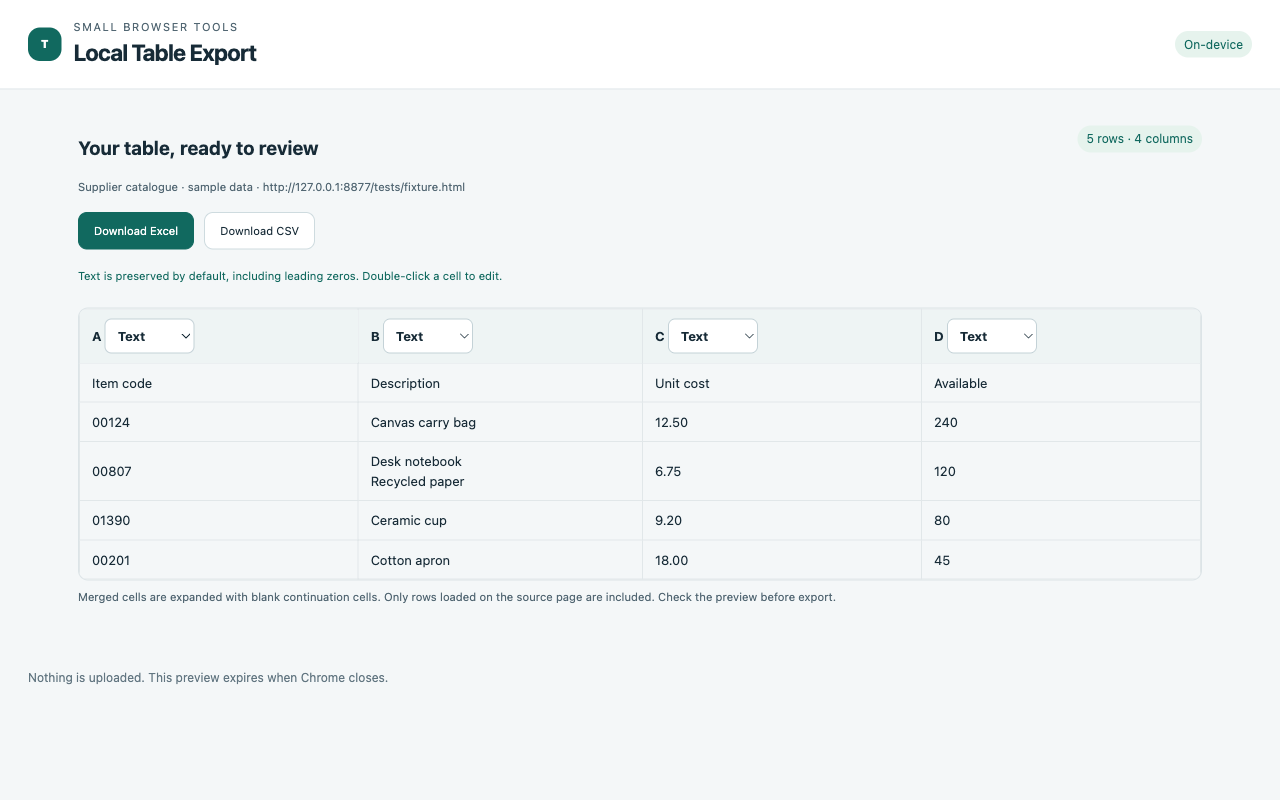
Open the webpage and load the rows you need. Invoke Local Table Export, choose Select a table, and click the highlighted HTML table. The extension captures rendered rows; it does not follow pagination.
2. Keep identifiers as text
Review the preview. Leave IDs, postal codes and reference numbers set to Text. Change an amount or quantity column to Number only when you want spreadsheet calculations.
3. Download XLSX and check the result
Choose Excel export. Open the workbook and check a sample ID, a number and a multiline cell. Prefer XLSX when you need explicit column types: spreadsheet applications may reinterpret CSV values when opening them.
4. Know what is supported
HTML tables and accessible ARIA grids are supported. PDF documents, canvas grids, embedded frames and unloaded rows are outside this version. Capture is limited to 2,000 rows and 100 columns.
Your work stays on your device
Processing runs locally in the extension. No account is required. Read storage and privacy details.
Watch the Local Table Export demo