How to crop and redact a full-page screenshot in Chrome
Before sharing a bug report or customer-support example, cover private details in the screenshot itself. Page Capture & Redact provides manual cropping and solid redaction before PNG export.
By Adarsh Kant · September 29, 2026
Availability: the extension is submitted to the Chrome Web Store and awaiting review. The steps below describe the submitted build.
1. Capture the page
Open the page, invoke Page Capture & Redact and choose Capture full page. Keep the source tab selected until the editor opens. The page is scrolled and captured locally.
2. Crop to the useful area
Drag a rectangle in the editor and choose Crop selection. Removing irrelevant parts makes the issue easier to understand.
3. Cover private details
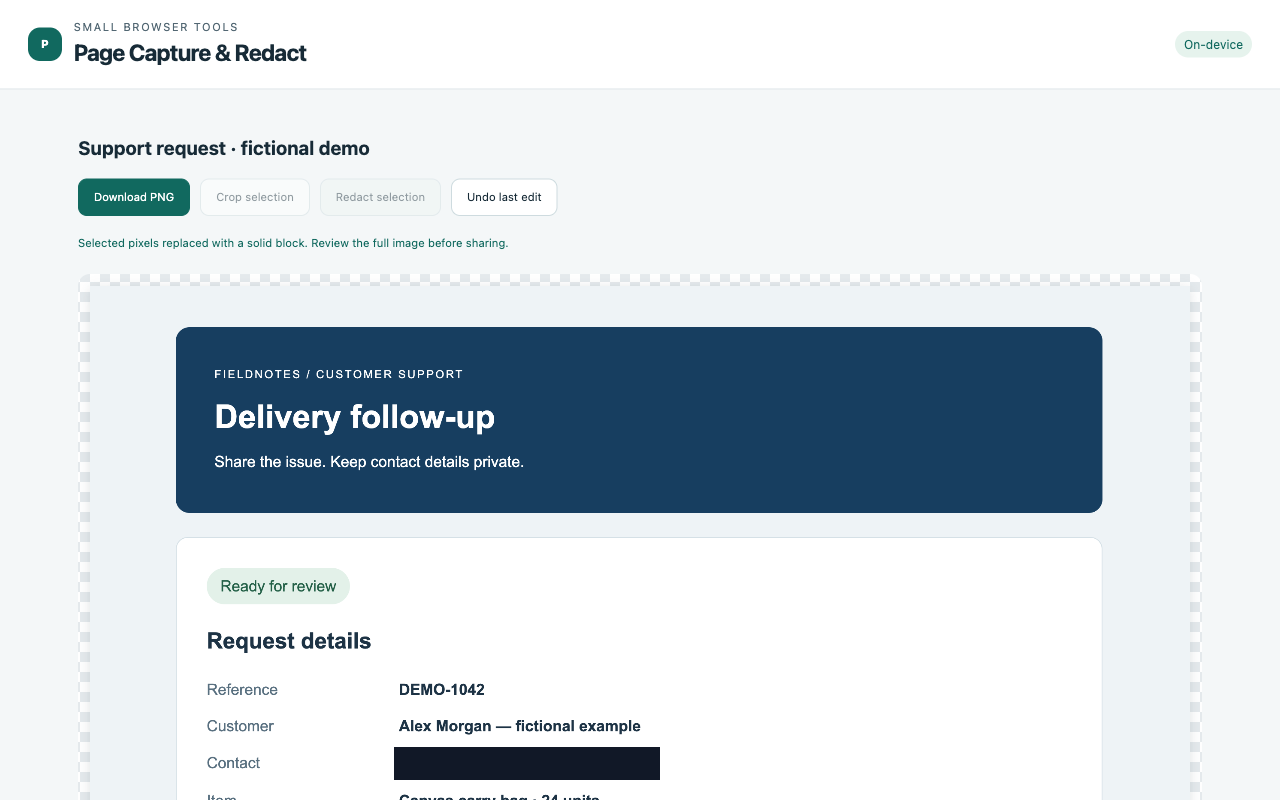
Select each email address, name or other private detail and choose Redact selection. This applies a solid block. Detection is manual: the extension does not find sensitive information for you.
4. Review the downloaded PNG
Check the full exported image before sending it. Sticky elements, dynamic pages and inner scrolling panels can cause incomplete captures. Refreshing the editor discards the current image.
Your work stays on your device
Processing runs locally in the extension. No account is required. Read storage and privacy details.
Watch the Page Capture & Redact demo