Save and restore Chrome tab sessions with a local backup
Keep research projects separate without leaving every tab open. Session Trail saves named snapshots of your regular tabs, lets you search them, and restores a snapshot into new windows.
By Adarsh Kant · September 29, 2026
Availability: the extension is submitted to the Chrome Web Store and awaiting review. The steps below describe the submitted build.
1. Save a named snapshot
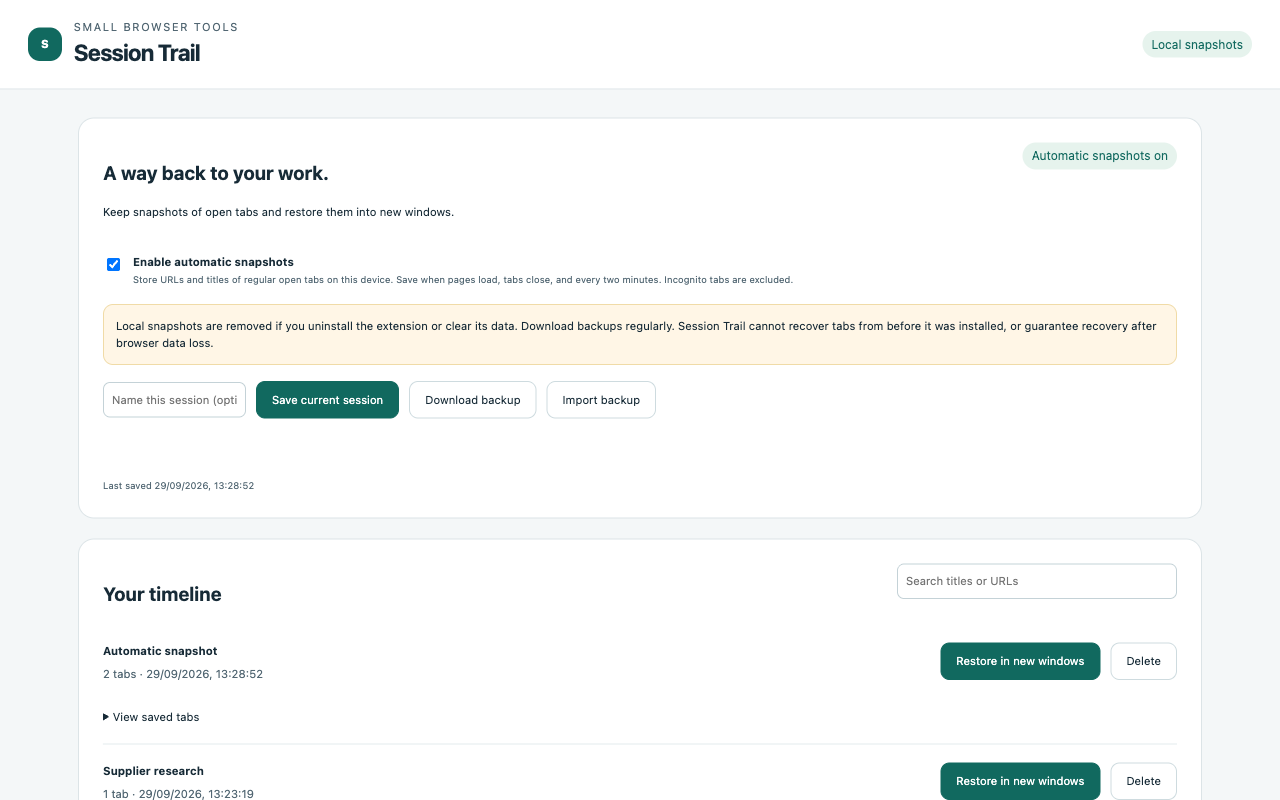
Open Session Trail and save the current session. Use a useful project name, such as Supplier research, so you can find it later.
2. Search before you restore
Search saved titles and URLs, then expand a snapshot to inspect the tabs. Restore opens new windows and keeps your existing tabs in place.
3. Download an external backup
Export a JSON backup and keep it in a safe location. Snapshots inside Chrome disappear if you uninstall the extension or clear its data. Downloaded backups contain tab titles and URLs; treat them as private.
4. Choose automatic snapshots deliberately
Automatic recording is off by default. If enabled, snapshots run on a timer and relevant tab changes. The extension keeps up to 50 snapshots and 500 HTTP/HTTPS tabs per snapshot. Incognito, internal pages, tab groups, form contents and scroll positions are not saved.
Your work stays on your device
Processing runs locally in the extension. No account is required. Read storage and privacy details.
Watch the Session Trail demo